Tutorial

Updated April 5, 2026
How to set up your profile
A complete profile builds trust with your followers and makes sure you actually get paid. Here’s how to fill in every section.

Step-by-step guide

Work through each section from top to bottom

01

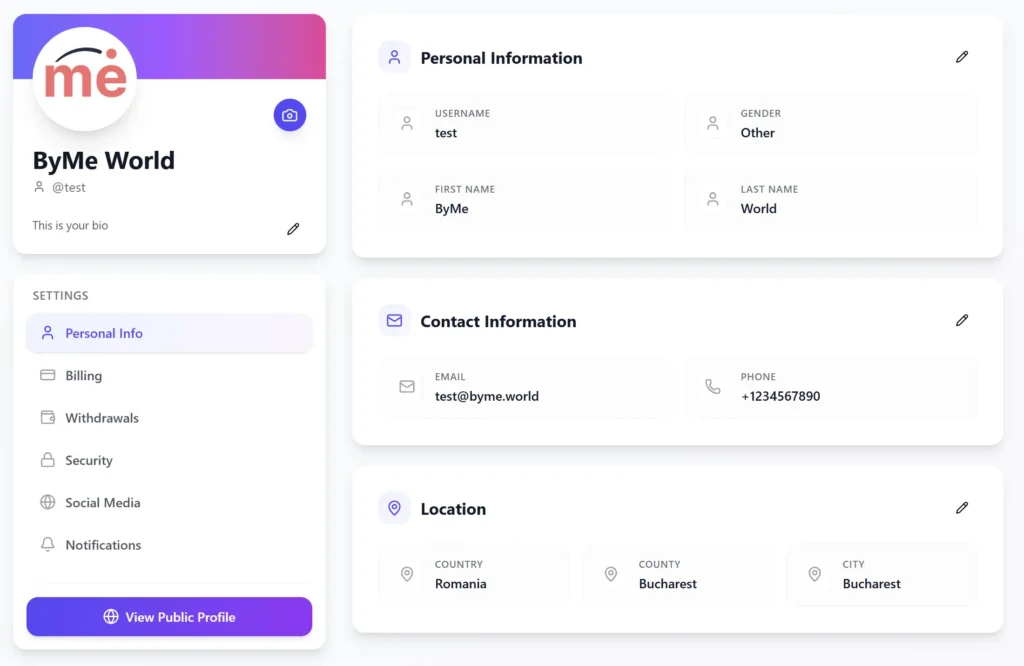
Go to your profile page

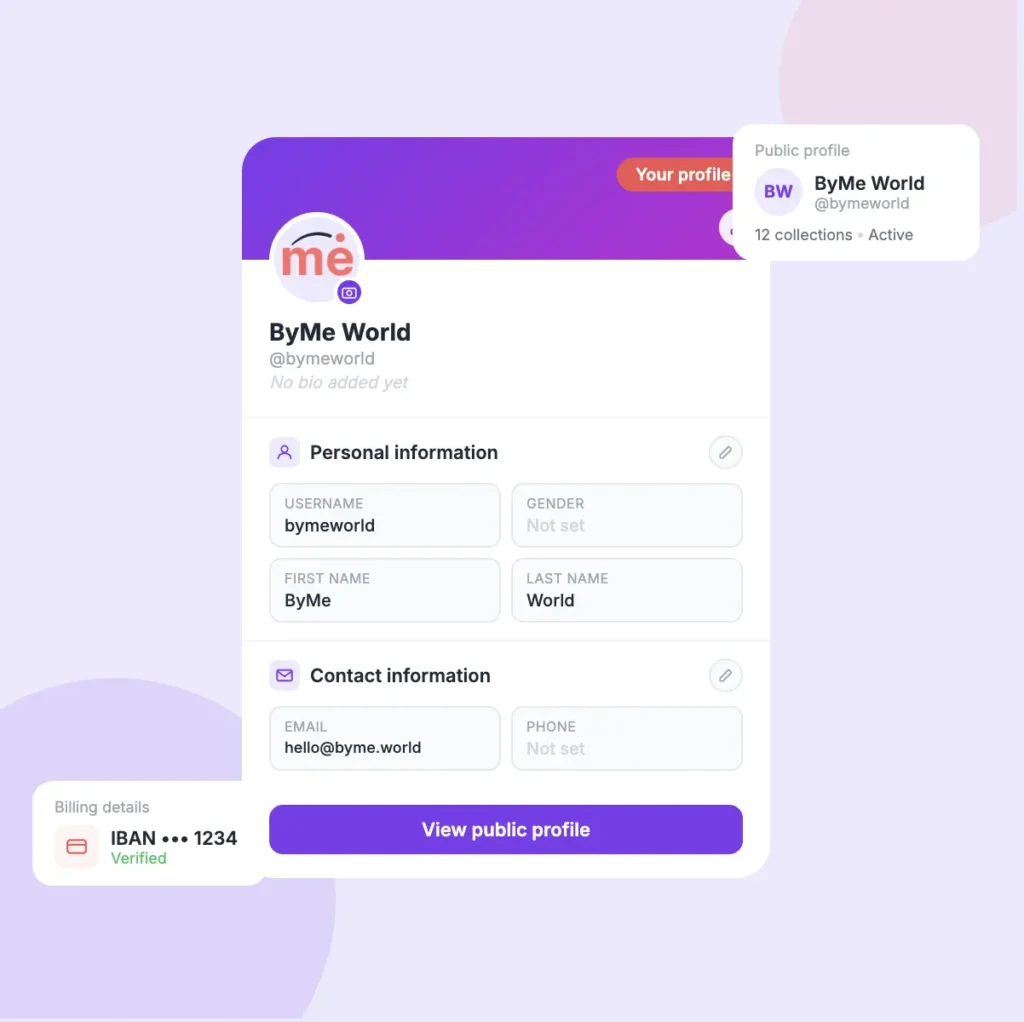
Click on your name in the top navigation bar to open your profile. This is where all your personal details, billing, and security settings live.

  • You can come back and edit any section at any time
  • Each section has a small pencil icon — click it to edit that section
Profile Page

02

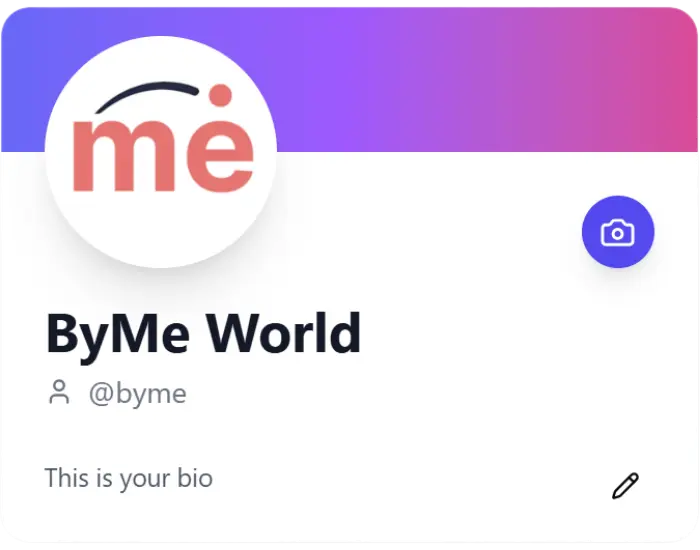
Add your profile photo & cover

Your profile photo is the first thing your followers see. Make it a clear photo of yourself.

  • Click the camera icon to upload a profile photo
  • The colourful banner at the top is your cover image
  • Use a photo that represents what your collections are about
Profile picture

03

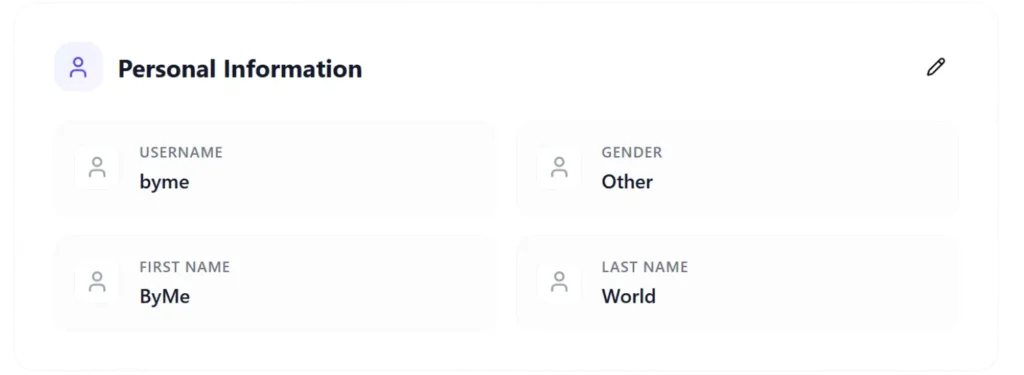
Fill in your personal information

This section holds your basic identity on the platform. Click the pencil icon to edit it.

  • Username — this is your public handle, like @yourname. For the moment, this can’t be changed.
  • First & last name — used on invoices and payouts
  • Gender — optional, you can skip this
personal-information

04

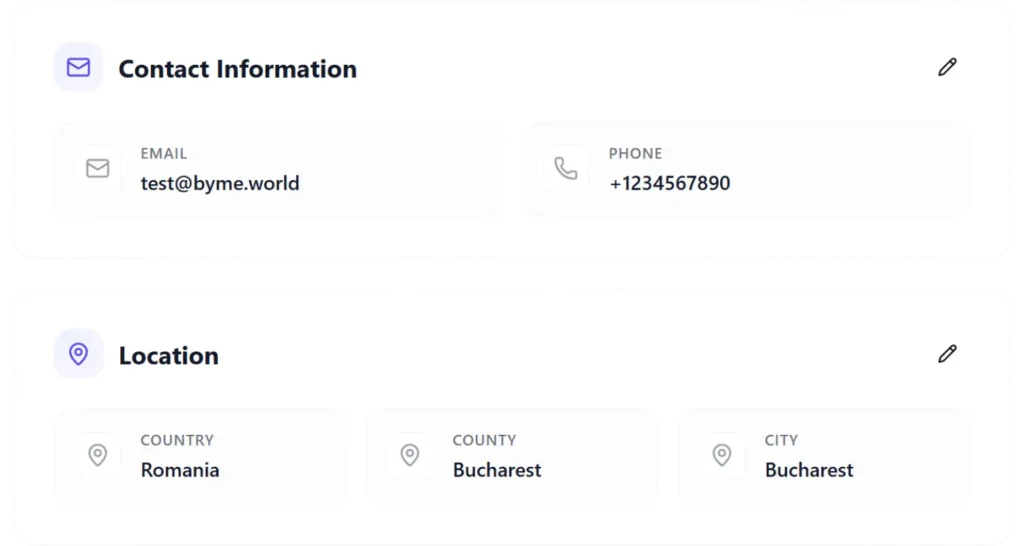
Add your contact & location

Your contact details and location help the platform verify your account and process payouts correctly.

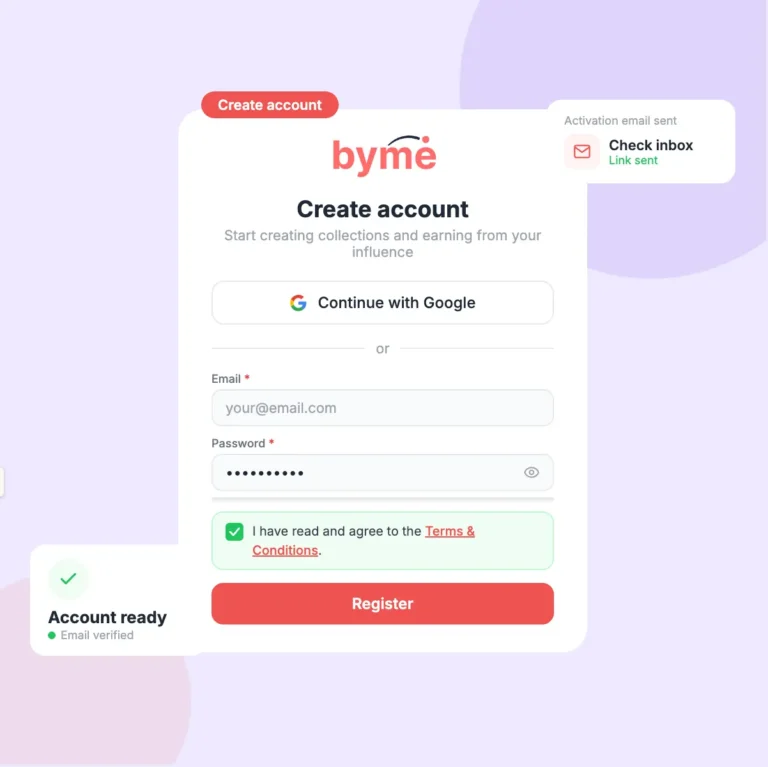
  • Email — already set from when you registered
  • Phone — recommended for account security
  • Country, county & city — required for billing and payouts
Contact-information

05

Set up your billing details

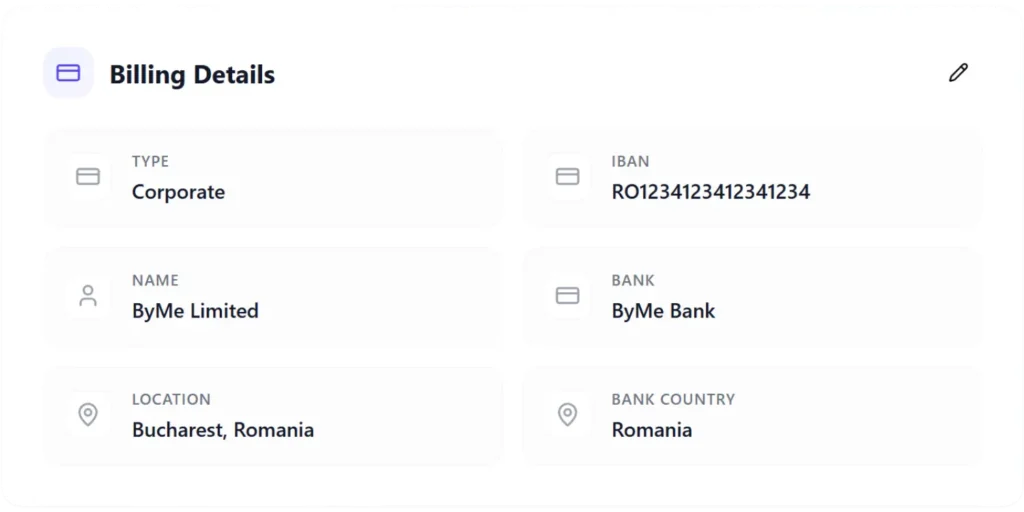
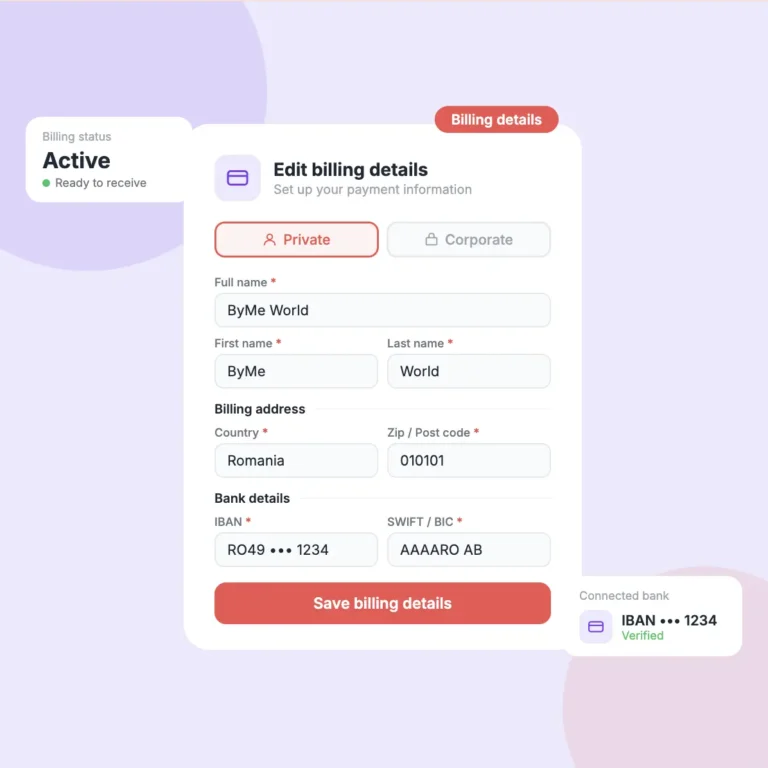
This is where you tell the platform where to send your commission payments. Without this, you will not receive any money.

  • Click Add billing details to get started
  • Choose between Private (individual) or Corporate (company)
  • You’ll need your bank account details ready
  • This only needs to be done once

You will not receive any commission payments until your billing details are filled in. Do this before you start sharing collections.

How to add your billing details

Private vs Corporate - A full step-by-step guide

Billiong-details

06

Security & social media

The last two sections help keep your account safe and let your followers find you on other platforms.

  • Use Change password to update your password any time
  • Use a strong password — mix letters, numbers, and symbols
  • Add your social media accounts so followers can connect with you elsewhere
socials

Tips for better collections

Follow these best practices to create collections that resonate with your audience and drive more conversions

Use a real photo

Profiles with a real photo get more trust from followers than those without one.

Billing first

Add your billing details before sharing any collections — so you never miss a payment.

View your profile

Use the “View public profile” button at the bottom to see exactly what your followers see.

Your profile is ready — now start earning

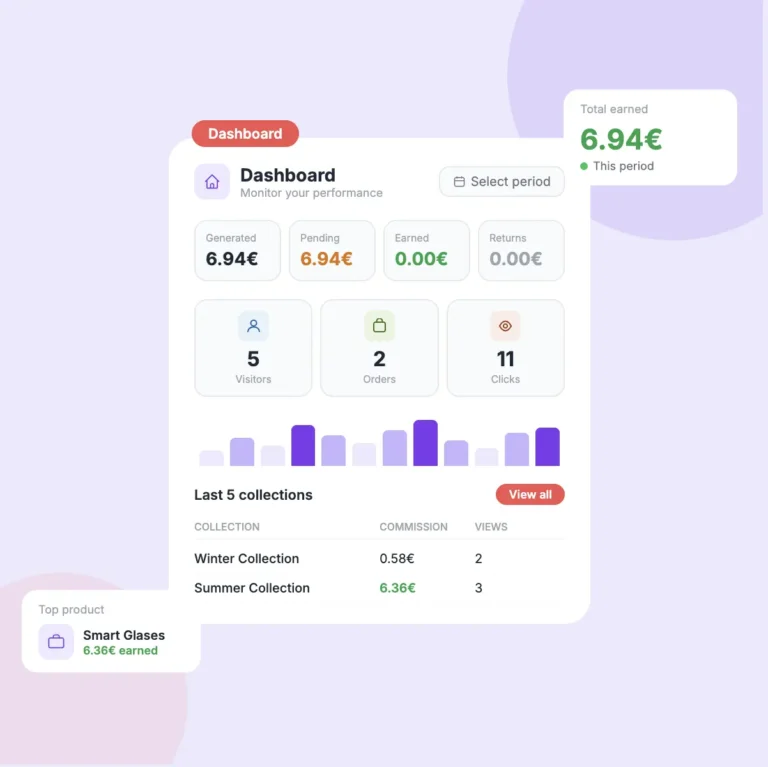
Once your profile is set up, you’re ready to create your first collection and share it with your followers.

Related Tutorials

Continue learning with these helpful guides

Tutorial balance withdrawal

How to check your Balance

You've been earning — now let's make sure you know exactly where your money is, what it means, and how to get it paid out to your bank account.
April 7, 2026

Read Tutorial

Link works cover

How your special link works

Every time you share a collection or a product, you share a unique link that belongs only to you. Here's exactly how it works and why it matters for your earnings.
April 7, 2026

Read Tutorial

How to share your collection with your followers

Sharing your collection is how you start earning. Every time someone buys through your link, you get a commission — so the more you share, the more you can earn.
April 7, 2026

Read Tutorial

Delete collection cover

How to delete a whole collection

Deleting a collection permanently removes it and all its products from your active feed. ByMe has a two-step confirmation to make sure it's never done by accident.
April 7, 2026

Read Tutorial

Delete product cover

How to delete a product from a collection

Removing a product from your collection takes just two taps. Here's what happens when you delete one — and what you need to know before you do it.
April 7, 2026

Read Tutorial

add_product_cover

How to add a product using a link (URL)

Adding a product to your collection is as simple as copying a link from any supported online store and pasting it into ByMe. Here's exactly how it works.
April 7, 2026

Read Tutorial